After staging, you can now proceed to save the snapshot, aka creating a commit.
Saving a snapshot is called committing and a saved snapshot is called a commit.
A Git commit is a full snapshot of your working directory based on the files you have staged, more precisely, a record of the exact state of all files in the staging area (aka index) at that moment -- even the files that have not changed since the last commit. This is in contrast to the intuitive expectation that only the is stored in a commit. Consequently, a Git commit has all the information it needs to recreate the snapshot of the working directory at the time the commit was created.
A commit also includes metadata such as the author, date, and an optional commit message describing the change.
A Git commit is a snapshot of all tracked files, not simply a delta of what changed since the last commit.
Target To create a commit based on staged changes.
Preparation
You can continue using the sandbox created in the previous hands-on practical, or,
1 First, let us do a sanity check using the git status command, to confirm there are staged files.
git status
On branch master
No commits yet
Changes to be committed:
(use "git rm --cached <file>..." to unstage)
new file: fruits.txt
2 Now, create a commit using the commit command. The -m switch is used to specify the commit message.
git commit -m "Add fruits.txt"
[master (root-commit) d5f91de] Add fruits.txt
1 file changed, 5 insertions(+)
create mode 100644 fruits.txt
3 Verify the staging area is empty using the git status command again.
git status
On branch master
nothing to commit, working tree clean
Note how the output says nothing to commit which means the staging area is now empty.
1 Ensure the new file fruits.txt has been staged.
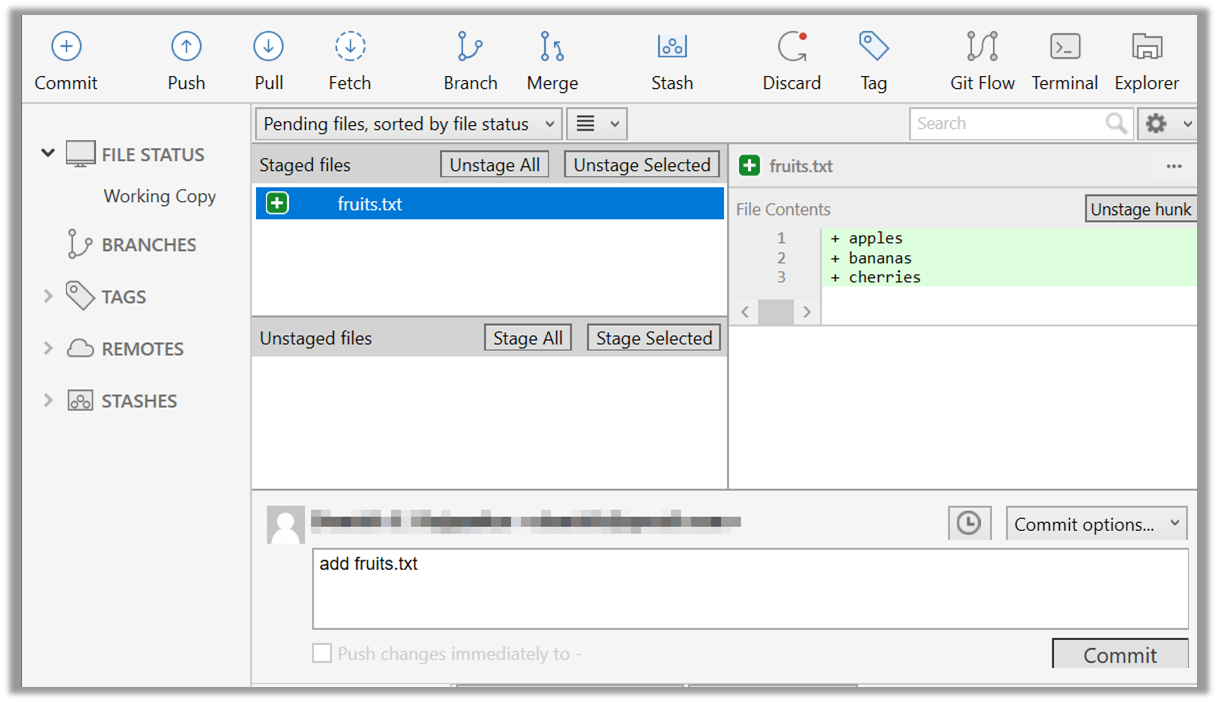
2 Click the Commit button at the top of the window.
3 Enter a commit message (e.g. add fruits.txt) into the text box.
4 Click Commit.
done!